Install a free Watch Face
The Connect IQ Store app is Garmin's full catalog. This is the path that works for every compatible watch.
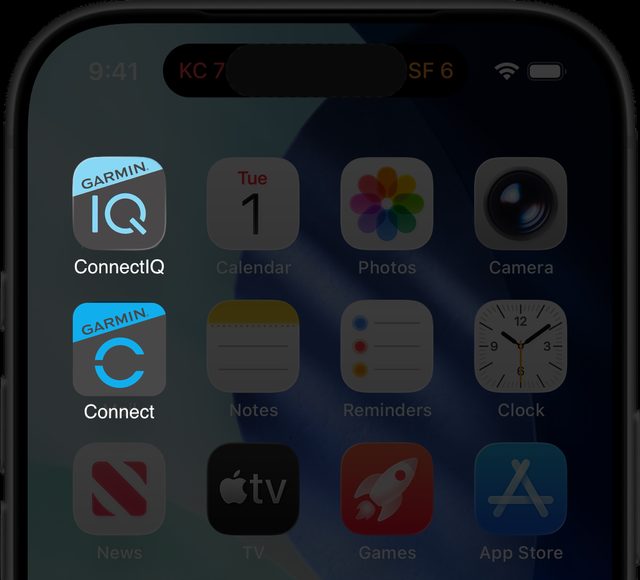 Connect IQ Store app icon on the phone home screen
 Connect IQ Store
On your phone, open the App Store and install the free Connect IQ Store app. It is separate from the main Garmin Connect app.
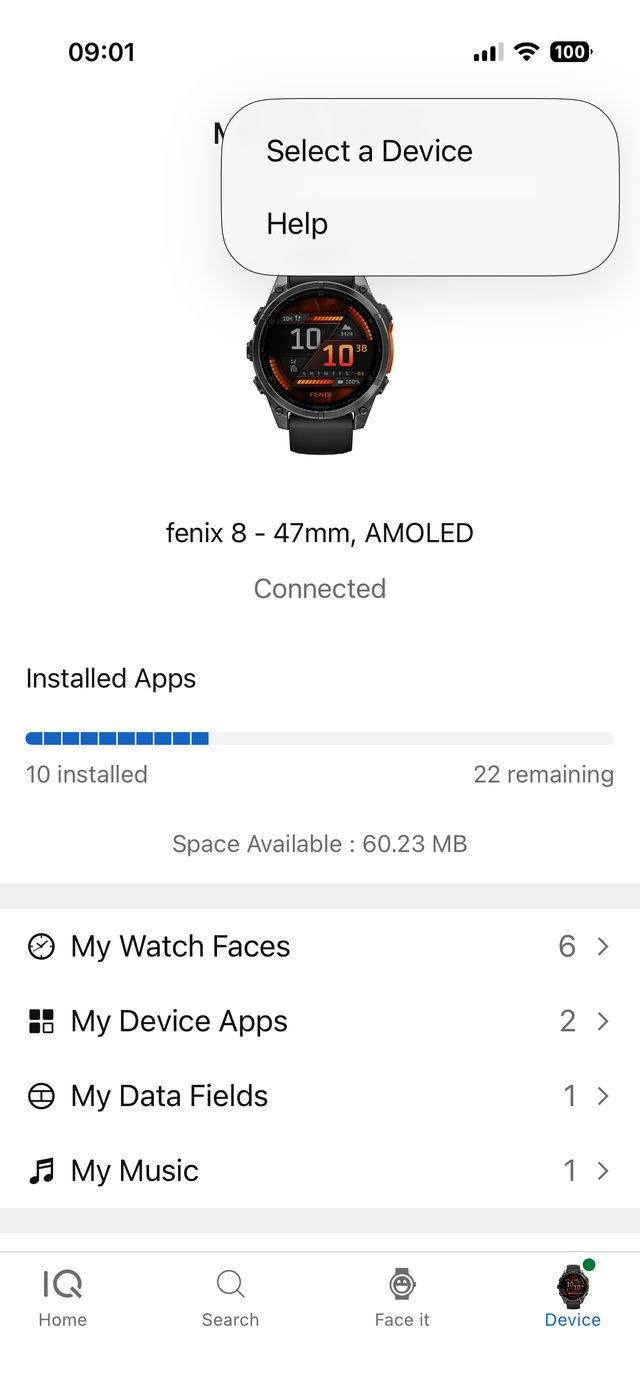 Sign in screen, then watch selected at the top of the appConnect IQ Store
Sign in with the same Garmin account you use in Garmin Connect. Make sure your watch is paired and shown at the top of the app.
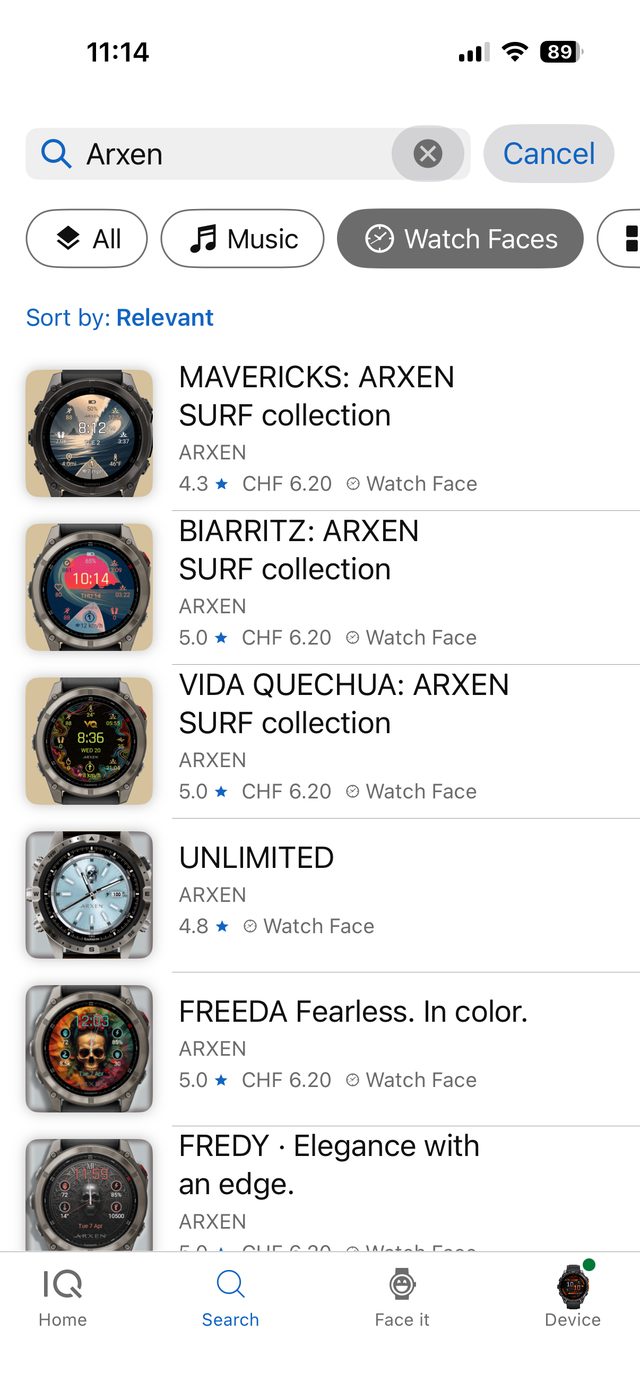
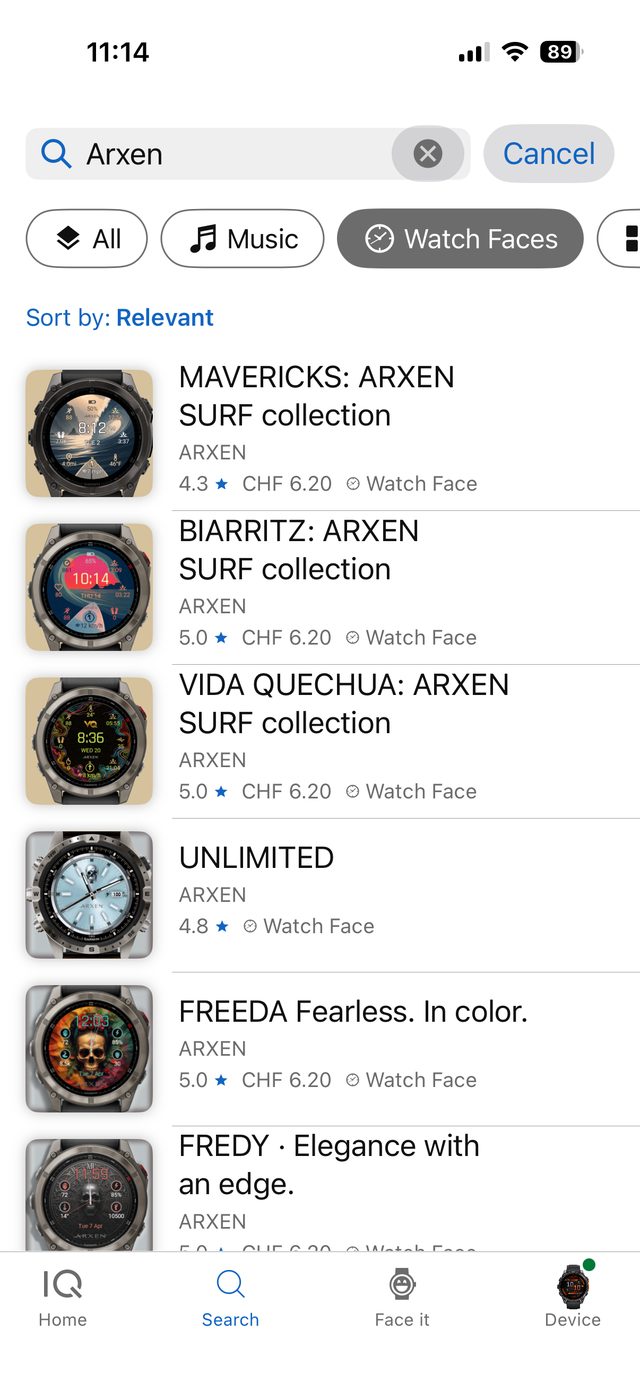 Search result for the Watch Face, with the compatible model list visibleConnect IQ Store
Search by name or browse the Watch Faces category. On the face's page, confirm your exact watch model is listed as compatible.
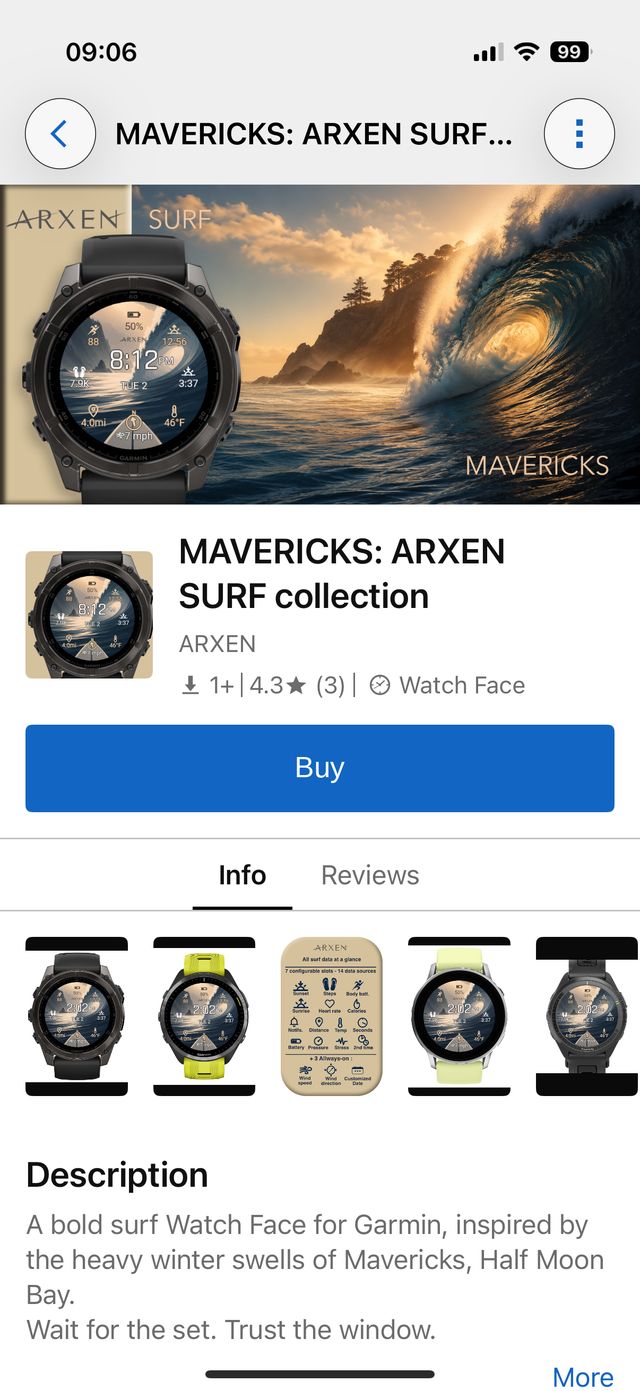
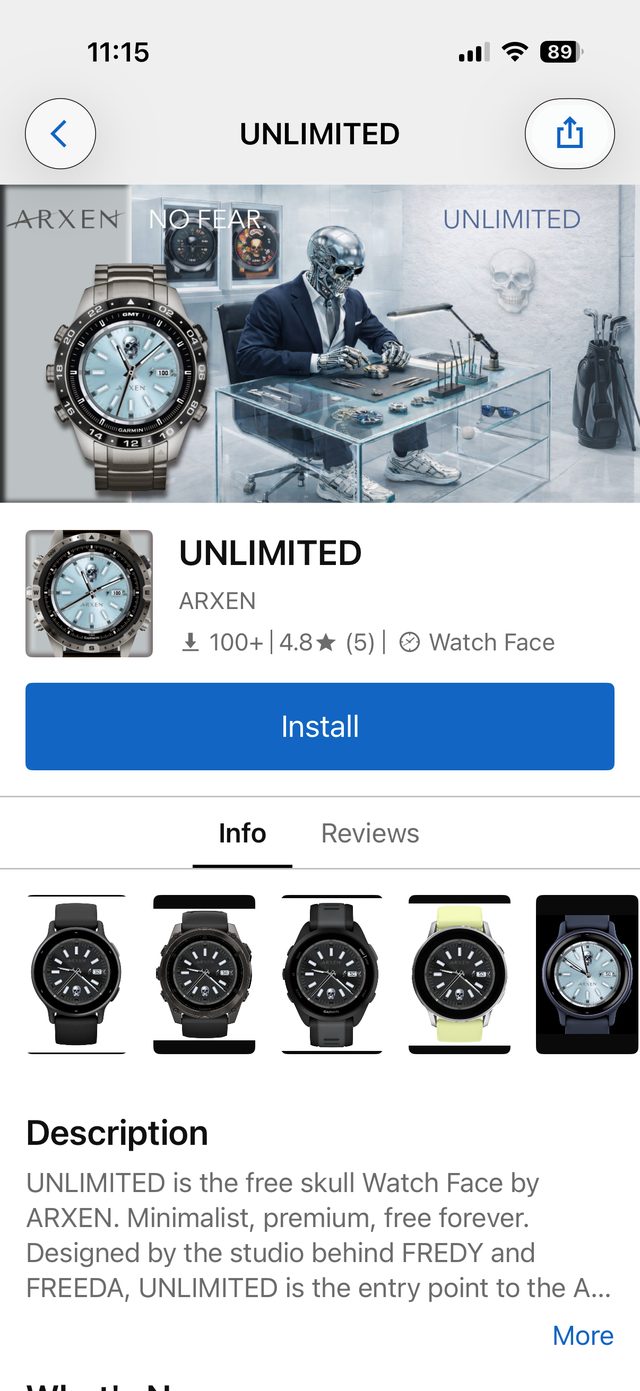 The green Get button on the Watch Face pageConnect IQ Store
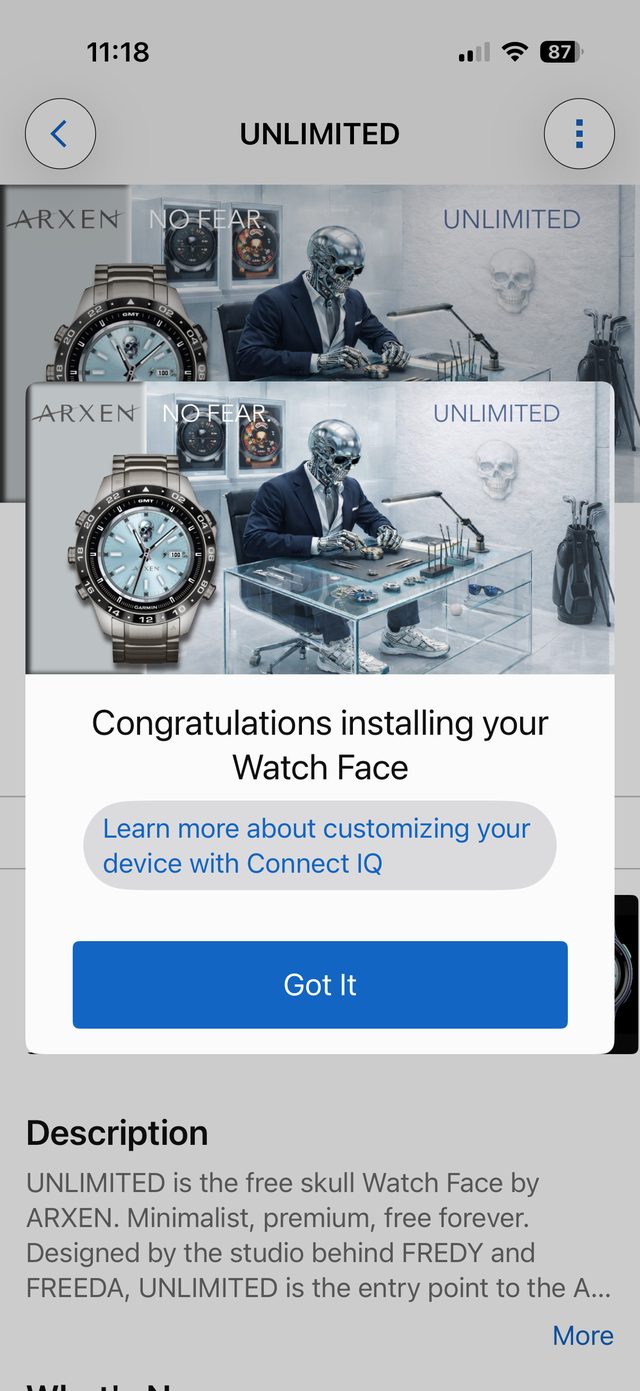
Tap Get. If the face asks for permissions like location or heart rate, accept them: that is how it shows that data on your wrist. The face then joins your watch's install queue. Nothing changes on the watch yet.
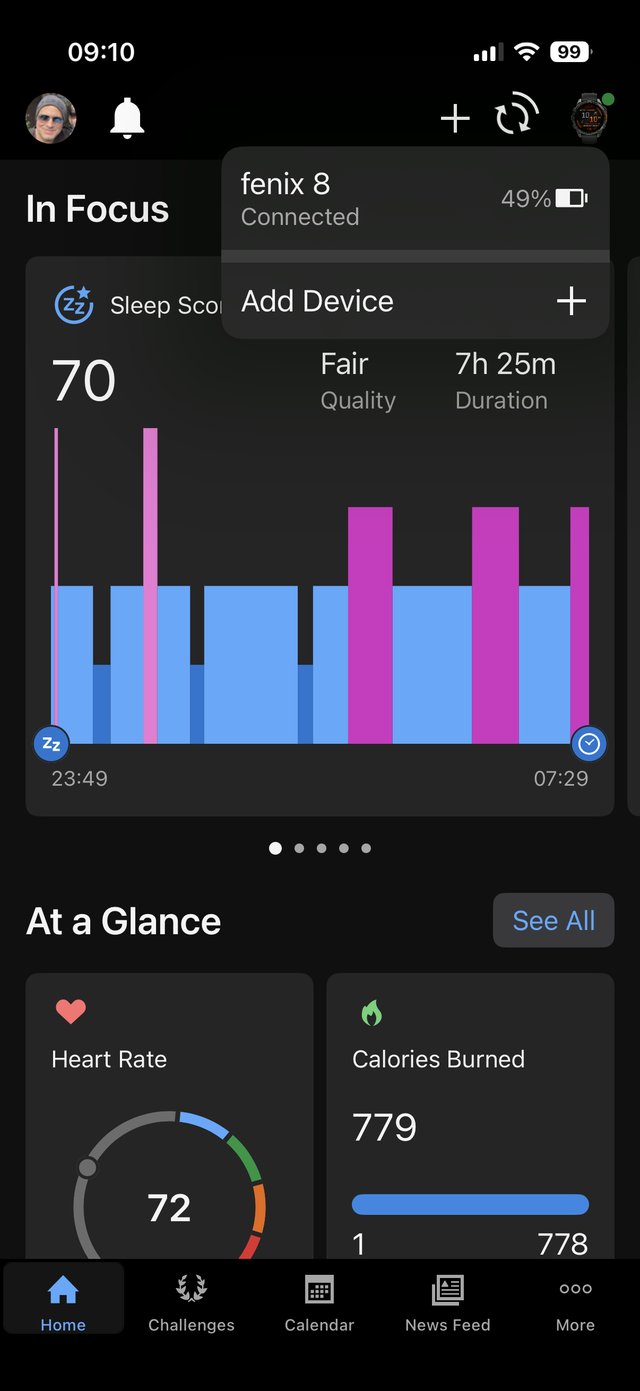
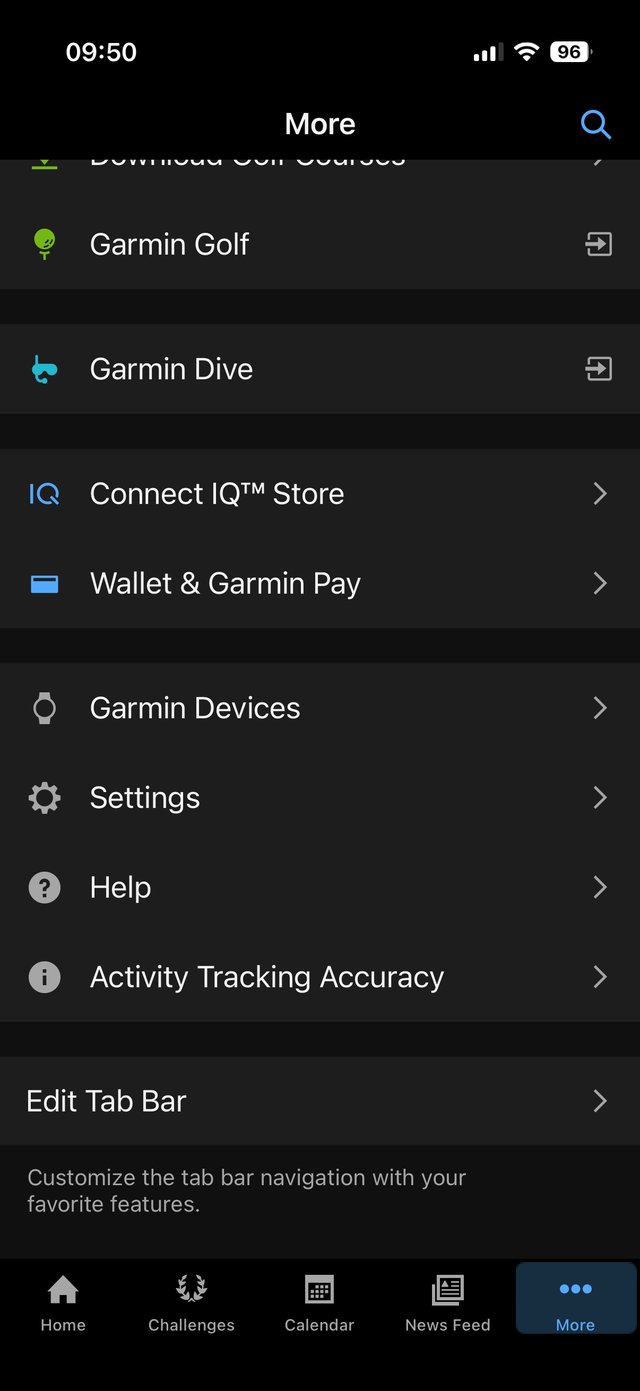
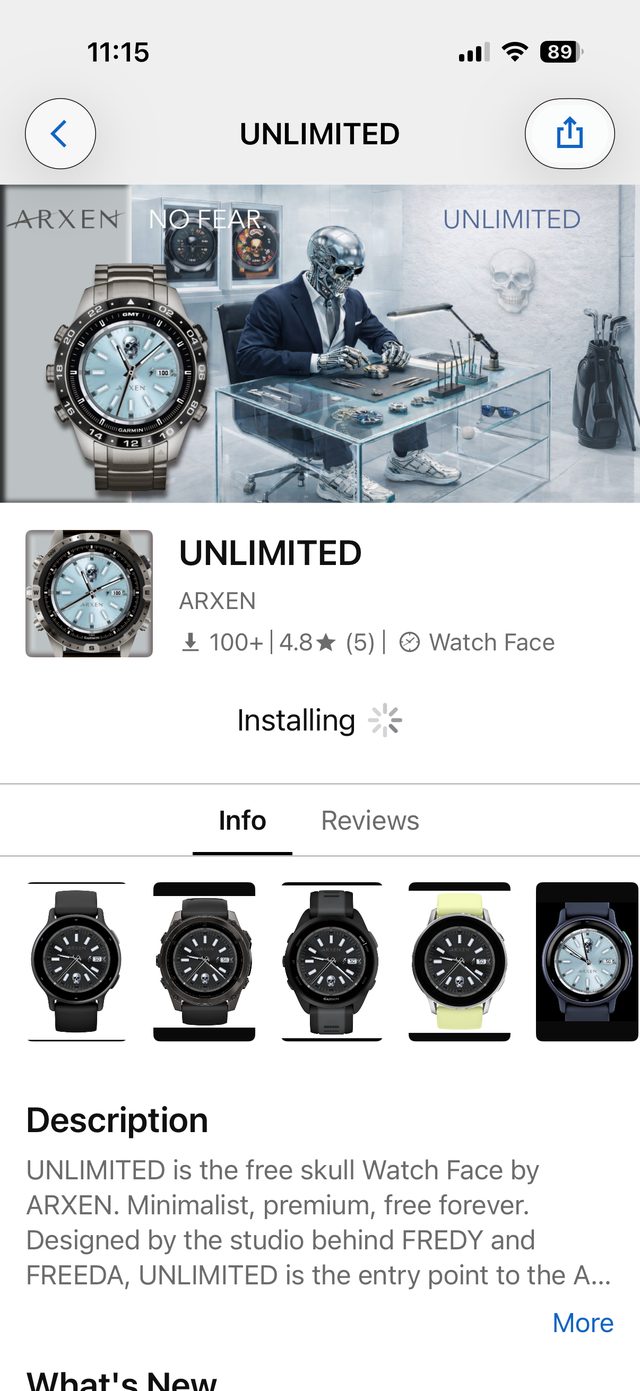 Garmin Connect syncing the watch, watch held close to phone
 Garmin Connect
Open Garmin Connect, keep the watch close to your phone, and let it sync. The face arrives after the next sync.
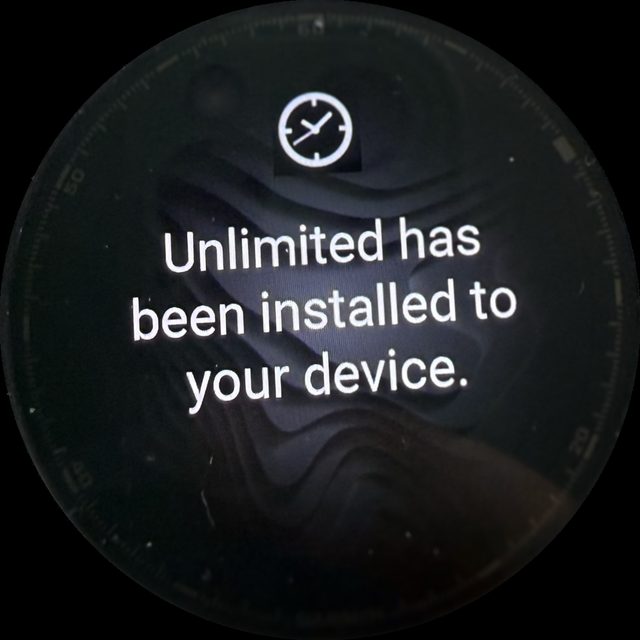
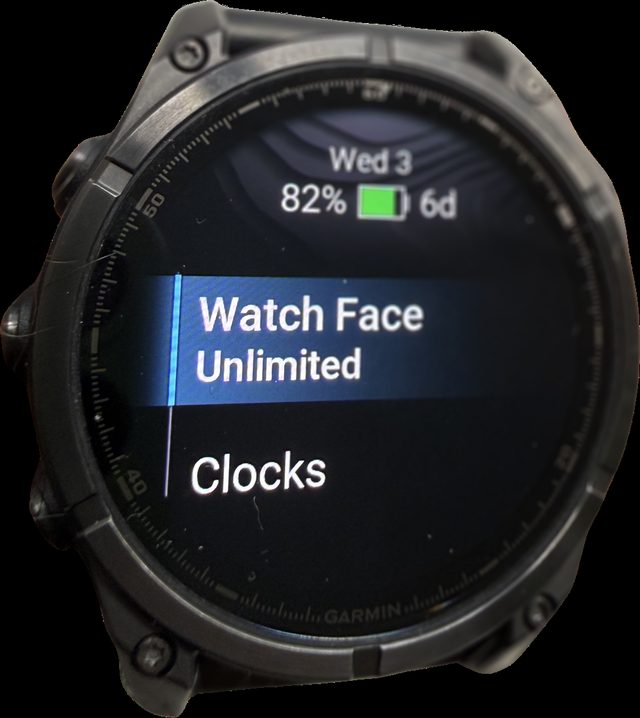 Watch face selection list on the watch, new face highlighted
Press and hold the current face, or hold the UP or MENU button (often the middle-left button on Forerunner and Fenix), then choose your new Watch Face. It sits in the list mixed in with the preloaded ones.